
In order to add the widgets to your blog, you will need to make sure that you have signed in to Blogger and pull your blog up as well, as you will need to go back and forth between Blogger and Bloglovin'.
- Open up a new window in your Internet browser.
- Go to Bloglovin'. Click HERE for a shortcut to get there.
- When you get to Bloglovin' sign in.
- Hover your mouse over the white heart contained within the blue box (unless you've uploaded your picture which will take the place of the heart).

- Scroll down and choose 'Bloglovin' Button'. This will bring you to the page with all the button choices..

- Choose the one you want from the 'Bloglovin' Buttons' options and click on 'Get this icon'.

- A box will come up giving you the code you need.
- Go back over to Blogger and choose 'Layout'.

- Click on 'Add Gadget' wherever you want to put the button. Remember you can always drag and drop later to move it around.

- In the 'Add a Gadget' window options, scroll down and choose, HTML/JavaScript

- This will pull up the area that you will plug your code into.
- You can put in a title if you want to but you don't have to.
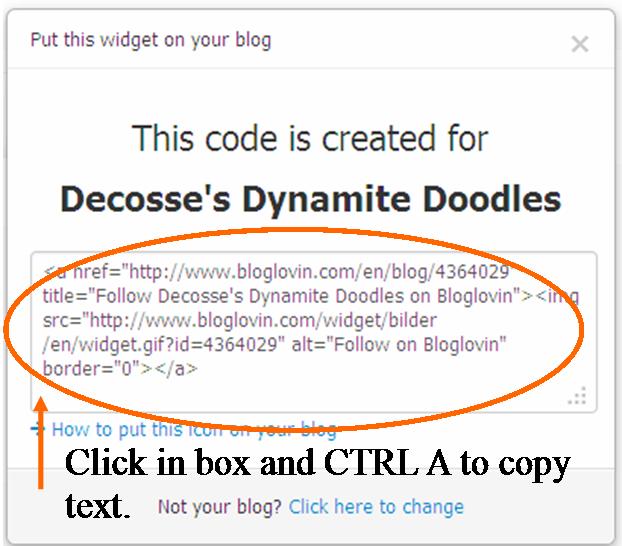
- Now go back to Bloglovin' where you have the box pulled up that says 'This code is created for <<<your blog name>>>'

- Click anywhere in the box and hit 'ctrl A' to copy it all.
- Now go back to Blogger where you have your html box up, click in that empty space and paste.

- Click save.Rearrange the button where you want it on your layout page and remember to click on 'save arrangement' before leaving this page.



If
you are unclear with any of these steps, just let me know. Good luck!
Until next time,

Hi Lisa! I'm on Bloglovin, and I've discovered that I don't get all the posts published there, even though I follow the blog with Bloglovin. I've discovered this as I compare what I get in Google Reader vs Bloglovin. Do you have the same experience?
ReplyDeleteHi Lisa ... Thank you so much for the tutorial on adding the Bloglovin button. All done and dusted xx
ReplyDelete